Showing posts with label Google. Show all posts

The Google Chrome SEO Extension provides easy access to Search Engine Optimization Tools that can help you with Competitive Analysis, Keyword Research, Backlink Checks, PageRank Checks and other daily SEO tasks.


NEW FEATURES
● Displays traffic graphs
● Detects Robots.txt and Sitemap.xml


Currently in the Google Chrome SEO Tools you'll find:
● Keyword Research Tool (Alpha Version)
● Highlight NoFollow links
● The number of Pages Indexed
● The number of Backlinks
● Current Traffic and Rankings
● Social Bookmark counts
● Cached Versions of the page
● Domain Details like DNS, IP, Whois, Server Location


Current sources inlcude :
Archive.org, Alexa Rank, Compete Rank, CoralCDN, Ask, Baidu, Bing, Delicious, Digg, Dmoz, Google PageRank, MajesticSEO, Open Site Explorer, Quantcast, SEMRush, SEOmoz, Linkscape, StumbleUpon, Technorati, WebCite, Yandex Quotation Index, Yahoo.


FUTURE FEATURES
● Integration with Google SERPs. Similar to SeoQuake or the SEOBook Firefox extension.
● The ability to compare site ranking stats, side by side.
● Keyword Ranking Checker to check search rankings.
● On page Keyword Analysis
● Integrate the Keyword Tool with the Google Adwords Keyword Tool to make keyword research faster.
● PPC Integration (Adwords, Adsense, Microsoft Adcenter, Yahoo Search Marketing)
● Support for Wolfram | Alpha
● Better descriptions so any Web Designer / Developer can work with the tool.
● Google Analytics Integration
● Google Chrome SEO Toolbar
● Allow Google Chrome SEO Add Ons so developers can contribute plugins.


Download it now

Google is now competing with popular services like StumbleUpon, Digg and Reddit by providing the same. Google launched a new iGoogle gadget “What’s Popular”. This simple and easy to use gadget may out smart other service providers in long run.

What does this gadget do?

This gadget helps users to discover many interesting items on the web and allows viewers to pop stories that they find interesting. Based on pop and user activities in a number of Google services like Google reader and YouTube, Google can decide what’s popular and display popped stories on it.

Users have the option to rate items that they like or dislike by clicking the ratings buttons which come with each item. There is no comment option in this gadget but users would like to share there views about pops. I think by adding comment option in this gadget may attract more users and fetch an additional edge to compete.

This new gadget has four tabs namely All, My Pops, My Adds and About.

  • ‘All’ tab shows the most popular stories
  • ‘My Pops’ shows the stories which user have allowed.
  • ‘My Adds’ tab displays URL added by the user.

Click here to add this new iGoogle gadget.


Source: Devils Workshop

NewsGator launched FeedDemon 3.0 Beta 4, which brought out the Google reader synchronization feature. This will allow you to read Google reader subscriptions on the desktop.

To get started, download this feature from FeedDemon.

Existing FeedDemon users can also use this option. If you are using FeedDemon and want to move to latest version with Google Reader sync, then follow this steps:

  1. Move your Newsgrater feed to Google Reader. In order to do this, go to Tools | Synchronization Options | Advanced | Convert Now.
  2. Run the set up you’ve downloaded.
  3. Enter your Google User ID and password to start synchronizing. It might take a few minutes based on your subscriptions.

Now, you can manage your Google Reader with FeedDemon. Sync speed is also good but note that this is a pre-release software, which means that you will run into bugs while using it.For example: FeedDemon is marking all the unread items as read while syncing with Google Reader.

If you’re not comfortable using this ‘unfinished’ software, please wait until the final release before downloading it.


Source: Devils Workshop

Google Reader is already a tool that can be used to boost your productivity throughout the day by letting you view your favorite blog’s feeds and posts in one spot: through your Google account. But for those of us who tend to get bogged down in a lot of useless subscriptions and really need to cut down on the minutes (or hours) we spend procrastinating each day, there are a lot of little hacks to make Google Reader more productive. We’ve compiled a list of over 50 of our favorites here.

Keyboard Shortcuts

Use these basic but necessary keyboard shortcuts to make searching, organizing, sharing and reading your feeds more efficient.

  1. /: Use the forward slash to move your cursor to the search box and start looking for new stuff or saved items.
  2. g then u: Type g then u to go to your subscriptions.
  3. g then d: This shortcut will take you to the recommended page. If there are no recommendations, typing g then d will take you to the browse page.
  4. 2: Press 2 to see your subscriptions in a list view or headline view.
  5. ?: Find more keyboard shortcuts just for Google Reader by pressing the question mark.
  6. Shift-s: Pressing Shift-S will share or un-share the selected item.
  7. s: Star and un-star your highlighted items simply by pressing s.
  8. Shift-o: Open up the highlighted subscription or folder with this shortcut.
  9. g then h: Press g then h to go back to the Google Reader homepage.
  10. g then shift-s: This shortcut will take you to the “Your Shared Items” page.
  11. shift-n/p: n/p stands for Next/Previous, and using this combination will select the Next/Previous selection or folder.
  12. v: Open up the original page of the selected item in Google Reader.
  13. e: Quickly e-mail a page or other selection by pressing e when you’re in Google Reader.
  14. r: Check to see if anymore unread updates have been added when you hit the r button in the navigation.

For Firefox

Firefox users like their browser’s speed and ability to add on new scripts or buttons. Check out several Google Reader-specific hacks for Firefox here.

  1. Enhance Google Reader Preview: This script adds a Preview button so that you don’t have to open up an article or post all the way to read it.
  2. BlogThis2Me: The BlogThis2Me script lets you “blog Google Reader’s “BlogThis!” to your own blog system, not to blogger.com,” as long as you have Firefox and Greasemonkey.
  3. Smart Google Reader Subscribe Button: this script “adds an overlayed check icon when you’re subscribed to at least one of the feeds that the site advertises via auto-discovery.”
  4. Gbutts 1.5.1: Gbutts is short for Google buttons, and you can add your Google Reader button, as well as any other Google buttons, to your Firefox address bar.
  5. Better GReader: Better GReader works with Firefox adds a menu with extra options and features like Smart Subscribe, Preview Inline, Optimized Skin and others.
  6. Google Reader Watcher: Google Reader Watcher is an add-on that makes Firefox check your Google Reader for unread fees. This download does not require Greasemonkey.
  7. Quick Hide Message: Shave off milliseconds with this script, which “quickly hides the message displayed in Google Reader after performing renames, folder changes,” and other actions.
  8. Auto Add Feed: The Auto Add Feed script only adds feeds to Google Reader, instead of asking you where you want it to be saved.
  9. Title Unread Count: This hack moves the unread count in Google Reader to the front.
  10. Greasereader: Add even more hot keys to your Google Reader systems by reading this guide.
  11. Google Reader All Starred: Extract all of your starred items as links from Google Reader so that you don’t have to download each one.
  12. Google Reader Read by Mouse: Set up this script so that you can use a mouse-only system to read your feeds. It uses mouse buttons for the following actions: next item, previous item, and more.

Real Time Savers

If you’re serious about making your Google Reader visits more efficient, learn how to categorize by priority, use the “next” bookmarklet, and implement scripts that let you autoscroll, review your subscriptions and more.

  1. Categorize by priority: Stepcase Lifehack recommends categorizing your feeds by priority so that you don’t get bogged down in irrelevant articles.
  2. Google Reader Autoscroll: The autoscroll script lets you “view and mark items as read by means of a mouse wheel and keyboard shortcuts.”
  3. Mark All as Read: If you only want to read one article from a feed, you can mark everything else as read to weed out your extra entries.
  4. Google Reader Scroll Reducer: With this script, you’re able to comment on and view the original site without having to scroll to the top of page to get to the URL.
  5. The “Next” Bookmarklet: The Google Reader Blog discusses this hack, which “allows you to use Google Reader through just one link — clicking on it takes your browser to the next unread item in your reading list.”
  6. Review your subscriptions: Are you still getting subscriptions for some obscure hobby you were only interested in a year ago? Go through your subscriptions and delete any that you don’t really want emptied into your account regularly.
  7. Print Button v2.0: The Google Reader Print Button v2.0 allows users to print either the selected content or everything that’s displayed on the page in Google Reader.
  8. Gmail + Google Reader: Add Google Reader into your Gmail account so you don’t have to constantly switch back and forth.
  9. Google Reader Filter: Get rid of duplicate and unwanted content with this script.
  10. Tag your items: Take advantage of the tagging feature on Google Reader. It’s there to help you stay organized and more productive.

Social Media Hacks

How much time do you waste each day checking all of your social media accounts? These hacks let you sync up Google Reader with Facebook, Twitter, Tumblr, Google Chat and more.

  1. Google Reader + ma.gnolia: This basic script lets you add a Google Reader post to ma.gnolia.
  2. Google Reader Digg News: Add a Digg button to your Google Reader posts with this script.
  3. Tumblr: Sync up your Google Reader and Tumblr with this script. You can attach your reblog button or Share-on-Tumblr at the bottom of articles on Google Reader.
  4. Managing Your Shared Items: This post from the Google Reader Blog shows you how to add and remove friends from your Gmail or GChat account.
  5. Google Reader and Flickr: Now you embed Flickr videos into your Google Reader, so you don’t have to switch back and forth to share with extra friends or read their comments.
  6. Facebook Sharer + Google Reader: Share your favorite posts and articles with Google Reader friends and Facebook friends.
  7. Google Reader + del.icio.us: Use this script to define tags and links for a faster way of posting to del.icio.us.
  8. Google Reader + Twitter: Use this script to add reader posts to Twitter.

Add-Ons and Solutions

Try out these add-ons to customize your Google Reader experience and streamline your Google accounts.

  1. Google Reader Notifier: This extension keeps you updated by showing you how many unread items you have in your account.
  2. Add a Search: Add a search engine to your Google Reader account to make searching for items faster.
  3. Google Reader Optimized: Use this script to view Google Reader in a larger space. The last official update was in 2006, but Google Reader users have submitted updates.
  4. Google Reader Romeo Script: Check out this script to access Google Reader from your cell phone — if you don’t have an iPhone.
  5. Google Reader Button for Internet Explorer: IE users can add on a Google Reader to their browser using this tutorial.
  6. iPhone Skin: iPhone users can easily view Google Reader on their phones with this special skin from developer David Cann.
  7. Iris: View your Google Reader subscriptions in a Firefox sidebar.
  8. Go behind the scenes: If you want to know how many people have subscribed to a certain feed, you can use this tutorial to speed up your search times.

Source : Bootstrapper

Google search engine can be used to hack into remote servers or gather confidential or sensitive information which are not visible through common searches.

Google is the world’s most popular and powerful search engine. It has the ability to accept pre-defined commands as inputs which then produces unbelievable results.

Google’s Advanced Search Query Syntax

Discussed below are various Google’s special commands and I shall be explaining each command in brief and will show how it can be used for getting confidential data.

[ intitle: ]

The “intitle:” syntax helps Google restrict the search results to pages containing that word in the title.

intitle: login password


will return links to those pages that has the word "login" in their title, and the word "password" anywhere in the page.

Similarly, if one has to query for more than one word in the page title then in that case “allintitle:” can be used instead of “intitle” to get the list of pages containing all those words in its title.

intitle: login intitle: password


is same as

allintitle: login password


[ inurl: ]

The “inurl:” syntax restricts the search results to those URLs containing the search keyword. For example: “inurl: passwd” (without quotes) will return only links to those pages that have "passwd" in the URL.

Similarly, if one has to query for more than one word in an URL then in that case “allinurl:” can be used instead of “inurl” to get the list of URLs containing all those search keywords in it.

allinurl: etc/passwd


will look for the URLs containing “etc” and “passwd”. The slash (“/”) between the words will be ignored by Google.

[ site: ]

The “site:” syntax restricts Google to query for certain keywords in a particular site or domain.

exploits site:hackingspirits.com


will look for the keyword “exploits” in those pages present in all the links of the domain “hackingspirits.com”. There should not be any space between “site:” and the “domain name”.

[ filetype: ]

This “filetype:” syntax restricts Google search for files on internet with particular extensions (i.e. doc, pdf or ppt etc).

filetype:doc site:gov confidential


will look for files with “.doc” extension in all government domains with “.gov” extension and containing the word “confidential” either in the pages or in the “.doc” file. i.e. the result will contain the links to all confidential word document files on the government sites.


[ link: ]

“link:” syntax will list down webpages that have links to the specified webpage.

link:www.expertsforge.com


will list webpages that have links pointing to the SecurityFocus homepage. Note there can be no space between the "link:" and the web page url.


[ related: ]

The “related:” will list web pages that are "similar" to a specified
web page.

related:www.expertsforge.com


will list web pages that are similar to the Securityfocus homepage. Note there can be no space between the "related:" and the web page url.


[ cache: ]

The query “cache:” will show the version of the web page that Google
has in its cache.

cache:www.hackingspirits.com


will show Google's cache of the Google homepage. Note there can be no space between the "cache:" and the web page url.

If you include other words in the query, Google will highlight those words within the cached document.

cache:www.hackingspirits.com guest


will show the cached content with the word "guest" highlighted.

[ intext: ]

The “intext:” syntax searches for words in a particular website. It ignores links or URLs and page titles.

intext:exploits


will return only links to those web pages that has the search keyword "exploits" in its webpage.


[ phonebook: ]

“phonebook” searches for U.S. street address and phone number information.

phonebook:Lisa+CA


will list down all names of person having “Lisa” in their names and located in “California (CA)”. This can be used as a great tool for hackers incase someone want to do dig personal information for social engineering.

Google Hacks

Well, the Google’s query syntaxes discussed above can really help people to precise their search and get what they are exactly looking for.

Now Google being so intelligent search engine, hackers don’t mind exploiting its ability to dig much confidential and secret information from the net which they are not supposed to know. Now I shall discuss those techniques in details how hackers dig information from the net using Google and how that information can be used to break into remote servers.

Index Of

Using “Index of ” syntax to find sites enabled with Index browsing

A webserver with Index browsing enabled means anyone can browse the webserver directories like ordinary local directories. The use of “index of” syntax to get a list links to webserver which has got directory browsing enabled will be discussd below. This becomes an easy source for information gathering for a hacker. Imagine if the get hold of password files or others sensitive files which are not normally visible to the internet. Below given are few examples using which one can get access to many sensitive information much easily.

Index of /admin
Index of /passwd
Index of /password
Index of /mail

"Index of /" +passwd
"Index of /" +password.txt
"Index of /" +.htaccess

"Index of /secret"
"Index of /confidential"
"Index of /root"
"Index of /cgi-bin"
"Index of /credit-card"
"Index of /logs"
"Index of /config"


Looking for vulnerable sites or servers using “inurl:” or “allinurl:”

a. Using “allinurl:winnt/system32/” (without quotes) will list down all the links to the server which gives access to restricted directories like “system32” through web. If you are lucky enough then you might get access to the cmd.exe in the “system32” directory. Once you have the access to “cmd.exe” and is able to execute it.


b. Using “allinurl:wwwboard/passwd.txt”(without quotes) in the Google search will list down all the links to the server which are vulnerable to “WWWBoard Password vulnerability”. To know more about this vulnerability you can have a look at the following link:

http://www.securiteam.com/exploits/2BUQ4S0SAW.html

c. Using “inurl:.bash_history” (without quotes) will list down all the links to the server which gives access to “.bash_history” file through web. This is a command history file. This file includes the list of command executed by the administrator, and sometimes includes sensitive information such as password typed in by the administrator. If this file is compromised and if contains the encrypted unix (or *nix) password then it can be easily cracked using “John The Ripper”.

d. Using “inurl:config.txt” (without quotes) will list down all the links to the servers which gives access to “config.txt” file through web. This file contains sensitive information, including the hash value of the administrative password and database authentication credentials.

For Example: Ingenium Learning Management System is a Web-based application for Windows based systems developed by Click2learn, Inc. Ingenium Learning Management System versions 5.1 and 6.1 stores sensitive information insecurely in the config.txt file. For more information refer the following
links: http://www.securiteam.com/securitynews/6M00H2K5PG.html

Other similar search using “inurl:” or “allinurl:” combined with other syntax


inurl:admin filetype:txt
inurl:admin filetype:db
inurl:admin filetype:cfg
inurl:mysql filetype:cfg
inurl:passwd filetype:txt
inurl:iisadmin
inurl:auth_user_file.txt
inurl:orders.txt
inurl:"wwwroot/*."
inurl:adpassword.txt
inurl:webeditor.php
inurl:file_upload.php

inurl:gov filetype:xls "restricted"
index of ftp +.mdb allinurl:/cgi-bin/ +mailto


Looking for vulnerable sites or servers using “intitle:” or “allintitle:”

a. Using [allintitle: "index of /root”] (without brackets) will list down the links to the web server which gives access to restricted directories like “root” through web. This directory sometimes contains sensitive information which can be easily retrieved through simple web requests.

b. Using [allintitle: "index of /admin”] (without brackets) will list down the links to the websites which has got index browsing enabled for restricted directories like “admin” through web. Most of the web application sometimes uses names like “admin” to store admin credentials in it. This directory sometimes contains sensitive information which can be easily retrieved through simple web requests.

Other similar search using “intitle:” or “allintitle:” combined with other syntax

intitle:"Index of" .sh_history
intitle:"Index of" .bash_history
intitle:"index of" passwd
intitle:"index of" people.lst
intitle:"index of" pwd.db
intitle:"index of" etc/shadow
intitle:"index of" spwd
intitle:"index of" master.passwd
intitle:"index of" htpasswd
intitle:"index of" members OR accounts
intitle:"index of" user_carts OR user_cart

allintitle: sensitive filetype:doc
allintitle: restricted filetype :mail
allintitle: restricted filetype:doc site:gov


Other interesting Search Queries

· To search for sites vulnerable to Cross-Sites Scripting (XSS) attacks:

allinurl:/scripts/cart32.exe
allinurl:/CuteNews/show_archives.php
allinurl:/phpinfo.php


· To search for sites vulnerable to SQL Injection attacks:

allinurl:/privmsg.php

Source

A simple text file edit makes sites redirect to another. When you type address in address bar in any browser and enter it then it will display another web page, for example:- when you type Google.com you will be redirected to yahoo.com

Instructions to do:

1) Go to this directory [c:\windows\system32\drivers\etc], directory may change according to drive used for os installation
2) then hit enter
3) find a file named "hosts"
4) Right click on it and open with word pad.
5) In the last link of the document type the IP* address of yahoo space www.Google.com (Vice versa for other sites)
6) now save it
7) restart the browser if its already running
8) Now try it, It works perfect

IP*: to find IP address of that website Goto start ->Run > type cmd > enter. Now you have a new window on desktop. On that type this without cotes "ping www. yahoo.com"
replace yahoo.com with your preferred site and then enter it

Live example:

How To Hack Google - The best home videos are here

Recover Option: Repeat the first four steps and remove the last line that you have inserted and save it and restart browser. Now its back to normal
try this on your frieds pc and public pc and make them blink.

Installing a theme

* Download a theme from the website.(Download Link)
* Extract the files in this .ZIP file to your desktop ( for example, with Winzip )
* If there is an executable between the files you extracted, run it.
This will install the theme for you. You're done.
* If you can't find an executable, you need to install the theme manually.
The theme is located in a folder you just extracted. Look for a folder with the same name as the theme.
Once you have found this folder, you need to move it to the directory where Google Talk stores all its themes.
This is C:\Documents and Settings\USERNAME\Local Settings\Application Data\Google\Google Talk\themes\user\chat.
USERNAME needs to be replaced with your windows username. Move the entire theme folder to this location.
Using the theme

* Start Google Talk if it's not already running.
* Now open your settings window by clicking 'Settings'.
* Select 'Appearance' from the left menu
* Your theme should appear in the list, if not, you did something wrong.
Select the theme and click OK.
* Open a conversation window and watch the magic.

Shortcuts

* CTRL + Mousewheel up/down over input textbox: Change the font size of the textbox.
* F9: Open Gmail to send an email to your friend
* F11: Start a call with your friend
* F12: Stop the current call
* ESC: Close the current window
* ALT + ESC: Minimize the current window
* TAB: Switch between multiple chat windows
* CTRL + I: Same as TAB
* SHIFT + TAB: Same as TAB but in reverse order
* CTRL + TAB: Same as SHIFT + TAB
* Windows + ESC: Open Google Talk (if it's minimized, or in the tray)

Conversation Text

* A message can be 32767 characters long.
* Certain smileys are recognized by Google Talk and will be shown in blue.
:-| :-O :-x :-P :-D ;-) :-( :| :O :x :P :D :) :( ;-| ;-O ;-x ;-P ;-D ;-) ;-( ;| ;O ;x ;P ;D ;) ;( B-| B-O B-x B-P B-D B-) B-( B'( BO Bx BD B) B( B) And you can put a ' between the characters to get another one shown in blue.
* To write text in bold, put it between *asteriks*
* To write text in italic, put it between _underscores_
* You can insert special characters like ♥♫☺ with 'Start / Programs / Accessories / System Tools / Character Maps'.

Conversation Window

* Drag a conversation window on top of another and they will dock together.
* Drag a file onto the chat history and you'll send the file to the selected contact.
* When you see a message notification, you can right click it to close it without focusing the conversation window.

Conference Calls

* What you need to do to have conference calls: Open up a copy of Google Talk on all computers with which you wish to conference. After one copy is opened make a new shortcut for Google Talk but at the end of it add /nomutex. If you installed it to the default folder then your shortcut should read "C:\Program Files\Google\Google Talk\googletalk.exe" /nomutex. Open 2 instances of the software on every user's computer. After this start a chain: User 1 should connect on one instance to user 2. User 2 will connect on his second instance to user 3. User 3 will connect using his second instance back to user 1. With this chain everyone is connected to everyone.

Nickname & Status Message

* You can change your name in the Google Account page.
or To change the nickname need to go to your Gmail account and change the name there. Choose Settings, Accounts, and then Edit info. Click on the second radio button, and enter your custom name.
As a result all of your emails will have that nick as well, there is no way to seperate the two.
* You can add a website in your custom message, it will be clickable when someone opens a conversation window with you.

Contacts

* You don’t need to say Yes or No when someone wants to add you as a friend; you can simply ignore it, the request will go away. (On the other hand, someone with whom you chat often will automatically turn to be your friend, unless you disable this).
* The Gmail account 'user@gmail.com' can't be invited as your friend.

Sound & Video

* It's possible to broadcast music, MP3, etc.. through Google Talk.
Unplug your microphone. Double click on the speaker icon in the lower right corner. This will open
up "Volume Control". Select "Options" and then "Properties". Then check the button
next to "Recording" then click OK. You may also have to change your setting under
Mixer Device. Now the Recording Control screen should be up. On my computer I selected "Wave Out Mix". Click on the green phone in Google Talk and call your friend.

Secret Startup Parameters

* /nomutex: allows you to open more than one instance of Google Talk
* /autostart: when Google Talk is run with this parameter, it will check the registry settings to see if it needs to be started or not. If the "Start automatically with Windows" option is unchecked, it won't start.
* /forcestart: same as /autostart, but forces it to start no matter what option was set.
* /S upgrade: Used when upgrading Google Talk
* /register: registers Google Talk in the registry, includig the GMail Compose method.
* /checkupdate: check for newer versions
* /plaintextauth: uses plain authentication mechanism instead then Google's GAIA mechanism. Used for testing the plain method on Google's servers.
* /nogaiaauth: disables GAIA authentication method. The same as above.
* /factoryreset: set settings back to default.
* /gaiaserver servername.com: uses a different GAIA server to connect to Google Talk. Used for debug purposes only, there are no other known GAIA servers.
* /mailto email@host.com: send an email with Gmail
* /diag: start Google Talk in diagnostic mode
* /log: probably has something to do with the diagnostic logging
* /unregister: ?
* /embedding: ?

Others

* If there’s something you think is missing in Google Talk, send off a message to Google.
* There was a hidden game in Google Talk. In the about screen you could see 'play 23 21 13 16 21 19 . 7 1 13 5'. Each number represented a letter. a=1, b=2, c=3 .... When you translated this message it said: 'play wumpus.game'. To play this game you had to invite wumpus.game@gmail.com as a friend. wumpus.game@gmail.com is always offline now. You can still play Hunt the Wumpus here.
* Google Talk can dock into the Google Desktop Sidebar. Doubleclick on the titlebar in the Google Talk main window and it docks as a panel into the GDS and slides out when you click the top of the docked panel.(Source)

Firefox add-on for your Google reader feeds
The Google Reader Watcher extension is based on one of my Grease monkey script, which name is Google Reader Checker

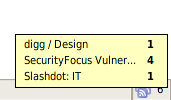
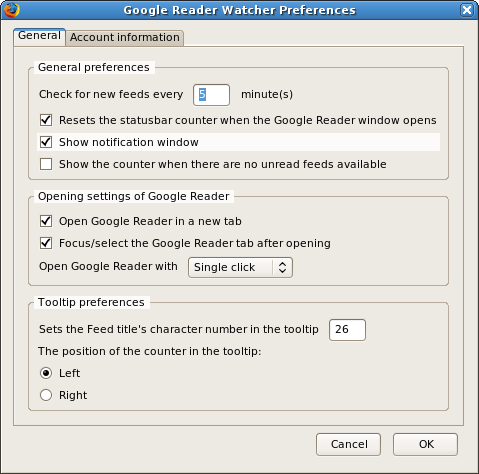
With the Google Reader Watcher extension you can check your feeds regularly, you can see which feeds have unread news. You can open the Google Reader directly from the status bar and not at last, you can configure the extension to login with your Google Account automatically.


Download Google Reader Watcher Add-ons for Firefox

for more details on this add-on visit this page


Gmail
Note: Must have "keyboard shortcuts" on in settings.
C: Compose new message.
Shift + C: Open new window to compose new message.
Slash (/): Switch focus to search box.
K: Switch focus to the next most recent email. Enter or "O" opens focused email.
J: Switch focus to the next oldest email.
N: Switch focus to the next message in the "conversation." Enter or "O" expands/collapses messages.
P: Switch focus to the previous message.
U: Takes you back to the inbox and checks for new mail.
Y: Various actions depending on current view:
Has no effect in "Sent" and "All Mail" views.
Inbox: Archive email or message.
Starred: Unstar email or message.
Spam: Unmark as spam and move back to "Inbox."
Trash: Move back to "Inbox."
Any label: Remove the label.
X: "Check" an email. Various actions can be performed against all checked emails.
S: "Star" an email. Identical to the more familiar term, "flagging."
R: Reply to the email.
A: Reply to all recipients of the email.
F: Forward an email.
Shift + R: Reply to the email in a new window.
Shift + A: Reply to all recipients of the email in a new window.
Shift + F: Forward an email in a new window.
Shift + 1 (!): Mark an email as spam and remove it from the inbox.
G then I: Switch to "Inbox" view.
G then S: Switch to "Starred" view.
G then A: Switch to "All Mail" view.
G then C: Switch to "Contacts" view.
G then S: Switch to "Drafts" view.

As I'm Orkut user I like these sites and Orkut hacks on it, the following are some of my collection regarding Orkut hacks

1) Zeetab(Orkut Star) - Computer World, Orkut Computer Tips and Tricks, Free Sms, Wallpaper, Mobile Software Game Ringtone Themes, Free games, Orkut Software, Bollywood wallpaper, MP3, FM Rradio and many more

2) Thisisorkut.org (TIO) - This Is Orkut (T.I.O) was created to provide more info and help tracks to Orkut users for their convenience. Easy to use Java Scripts, Online Toolbars, Help References, Trouble shooters, and lot more....

3) CrazySouls.com - Crazy souls have created many orkut scripts and they are really useful and working. Not only scripts they also profide stuffs for MSN, Cheets and many more

4) Trickfriend.com - Here, on this website, you will find tips and tricks that will help in making your life easier on Orkut. This webpage also contains many sftware related to Orkut

5) Tools Home - This site is developed by 15 yr Old boy, this site contains some cool stuffs and software

6) ScrapMania.com - This site provide services like Messages, Generators, ASCII Art, Bar Arts, Images, Emotions, Smailies and many more

7) Orkut Underworld - This is blog which have awesome collection of orkut tips and tricks, softwares and many more. In short simple blog but useful blog

8) Orkutrix.com - In the world of Orkut tricks! You find only GENUINE and popular orkut tricks and scripts here. Browse through the menu for those tricks but they also provide some hacking tricks of orkut

9) InsideOrkut.com - According to me this is the best of all because this website posts all the current information in orkut, this website is very useful for begineers and also for everyone

10) OrkutPlus! - Orkut plus is really a Plus to Orkut they are providing Best Compilation of Orkut Hacks, Tips-Tricks and Cheat Scripts ! as they are publishing

11) Devils workshop - This blog contains not only tips and tricks for Orkut it also having some best collection for My space, You tube, Google, Ad sense, and many more. More over I like the labels cloud on that blog

12) Digital Me - this blog just started before 2 months but it contains wide range of softwares, Java scripts, GM scripts, etc..

I'm still having many collection of website but this dozen of sites will do all what you want to known about orkut, so it wont be useful even if I provide more, from this website you can communication in orkut reaches next generation

Most of the people downloading trial and using it, only after the expiration of trial they try for crack, Serial No, Keygen, Patch....

But many don't known where to get Serial No, Some websites may be infect your system with Trojan horse, Viruses, Ad ware, Spy ware....

So for beginners this is a simply way to find hack with less effort and it saves time to, But make sure you have anti virus activated before trying to get some Serials, Patches to avoid data loss

Just follow the steps as instructed below

1) Go to http://www.google.com
2) type this syntax in search bar " 94FBR"
3) Replace Product name with desired software and leave a space then type 94FBR
4) Press enter, thats it

Now you receive Many pages which contains Serial no, Crack, Patches....

Just make a try, this simple trick works for many people


Amazing Solution for Universal messenger

Pidgin is a multi-protocol Instant Messaging client that allows you to use all of your IM accounts at once.

Pidgin can work with:

AIM, Bonjour, Gadu-Gadu, Google Talk,Groupwise, ICQ, IRC, MSN, QQ, SILC, SIMPLE, Sametime, XMPP, Yahoo!, Zephyr

So now you can able to have touch all the friends in different messenger in sametime without any problem

Beside this you can also get access to plenty of free plug-ins, including ones that can store a history of your commutation, store notes about friends, and other handy functions.

Download links:

Download from here or from official Pidigin site

Hacker Language

Language helps re-enforce the barrier between computer hackers and non-hackers, as well as that between hackers and crackers. Computer hackers have developed their own language. Firstly there is vocabulary that non-hackers will not know (TCP, IP, winsock, Linux, root access, vi, etc) due to a lack of computer-related knowledge. Secondly, some computer hackers have modified English with a set of conventions. Hackers replace ‘f’ with ‘ph’ (likely coming from phreaks who were interested in ‘ph’ones), and ‘s’ with ‘z’. Also hackers use numbers in place of letters such as ‘1’ for ‘i’ or ‘l’ (though replacing ‘i’ is not the proper usage), ‘3’ for ‘E,’ ‘4’ for ‘a’, and ‘7’ for ‘t.’ Also it is important to use random caPitAlizaTioN, abbreviation, slang, emphasize words by putting ‘k-‘ before them ("k-rad"), and finish a statement with a series of characters for emphasis.

Take this example from an Internet Relay Chat message in a hacking group (#hack):


Google For Hackers! - The top video clips of the week are here

c4n sUm1 h31p m3 w1tH h4x0RiNg mY sk00lz c0mPz?!?!?!!?!?

Which translates to: " can someone help me with hacking my school’s computers?"

Hi guys, of late, gmail has been loading very slowly for me. This means that, when ever I give my username and password at the login screen, after successful login, the screenshot shown below displays.

Gmail Loads SlowlyWhen that happens we hate to wait for infinitely long times. So, I discovered a simple hack through which you can eliminate that screen.

Notice that the address bar contains the URL of the format http://mail.google.com/mail?auth=DQAA etc.

Now, all you have to do is, change the “http://” in your browser’s address bar to “https://”, which means the URL will now look like https://mail.google.com/mail?auth=DQAA etc. Press Enter. Gmail loads faster.

Google Gears: Enabling Offline Web Applications

Google Gears is an open source browser extension that lets developers create web applications that can run offline.

Features

Google Gears consists of three modules that address the core challenges in making web applications work offline.

LocalServer : Cache and serve application resources (HTML, JavaScript, images, etc.) locally

Database : Store data locally in a fully-searchable relational database

WorkerPool : Make your web applications more responsive by performing resource-intensive operations asynchronously

Install Google Gears (BETA) for Windows

System requirements:
• Windows XP/Vista
• Firefox 1.5+ and Internet Explorer 6.0+


Tutorial: Enabling static files to work offline using Gears

Any static HTML files, such as documentation, can be enabled for viewing offline by following these steps. This tutorial shows you how to create a manifest file, and make your files available offline, using Gears. (Time estimate: 15 minutes.)
You will need:

* Ability to edit basic JavaScript
* Ability to publish files to the HTTP server that hosts your files
* The static files that you want to enable for offline viewing
* For a list of supported browsers and platforms, see gears.google.com.

Files to download for this tutorial:

* tutorial_manifest.json
* go_offline.html
* go_offline.js
* gears_init.js

1. Edit the sample manifest file
Save this tutorial manifest file to your computer.

* Rename it "manifest.json".
* Open your manifest.json in an editor.

Edit the version value

The manifest file contains a series of attribute-value pairs.

* Replace "my_version_string" value with a version string that is meaningful to you. This value represents the version of your documents. Example: "version 1.0".

You will update this version string in the future to indicate that there is a change in any of your documents.
Edit the URLs

The "entries" attribute contains an array of URLs that you wish to capture and have available offline.

* For every file and image that you wish to capture, add a "url" entry into the "entries" array. Follow the format in the sample manifest file.
* Check that each entry except for the last one is followed by a comma.
* To have the tutorial's "go_offline" files available offline too, include them in the manifest.

For example, if your documentation consists of an index.html page, a stylesheet style.css, and a logo in the file resources/logo.gif in addition to the tutorial's files, you will have the following "url" entries:

"entries": [
{ "url": "index.html" },
{ "url": "style.css" },
{ "url": "resources/logo.gif" },
{ "url": "gears_init.js"},
{ "url": "go_offline.html"},
{ "url": "go_offline.js"}
]

Note: The URLs can be fully-qualified, for example "http://www.example.com/index.html", or they can be relative to the manifest file's location.
2. Add some User Interface

Some basic user interface is needed to provide a way for your user to request the offline functionality.
Download and save these files to your computer:

go_offline.html - user interface sample
go_offline.js
gears_init.js - provides access to Google Gears.

Special note: To keep this tutorial simple, the go_offline.html file is provided to act as the user interface.

You are not limited to using the provided file; you can integrate the functionality provided in the go_offline.js JavaScript file into your application in other ways.

Keep in mind that the user will need to:

* Install Gears
* Allow your website to use Gears (a permissions dialog appears automatically)
* Enable the offline version of your documents

3. Upload files to your HTTP server
Upload all the files and your documents to your HTTP server.

* go_offline.html
* go_offline.js
* gears_init.js
* manifest.json
* All the files listed in your manifest.json file.

Important: Be sure all the files listed in the manifest file are available and accessible as listed.
4. Test: capture the files locally

In the testing steps, you act as the user.

* If you haven't already, install Gears on your computer.
* In your browser, type the URL of the go_offline.html page on your HTTP server
o For example: http://www.example.com/go_offline.html
* Click Capture. A status message appears when the file capture is complete.

5. Test: access the captured files

* Take your browser offline. Select File > Work Offline.
* Clear your browser cache. In Firefox, select Tools > Clear Private Data..., check Cache, and click the "Clear Private Data Now" button.
* Type the URL of your document.
o If the offline capture is in effect, you will see your stored document.
o If the offline capture is not in effect, you will see a browser error message

Clear your browser cache often while testing, to prevent seeing cached (but not necessarily offline-enabled) content.
Troubleshooting

* Make sure you have installed Google Gears.
* All the URLs in the manifest file must be correct, and reachable from the directory that the manifest resides in. The manifest file and the URLs it references must be located in the same domain.
* Check that there aren't any typos or extraneous files listed in the manifest.
* The code in go_offline.js expects that the manifest file is named "manifest.json" and that it resides in the same directory. Update the manifest.json references in go_offline.js as needed.
* Use a JavaScript debugger to see any errors that may be returned from the Gears API calls.

6. Publish it to your users

Your users can now access your documents offline by following the instructions in Step 4 above.
7. Future changes: maintaining the manifest

Whenever you update the contents in the static HTML files, or if you add or remove files, you must update the manifest file. When Google Gears detects a new manifest version string, the updated contents are automatically copied to your user's local machine when they next view any of your files.

* Always update the version string in the manifest file to indicate any changes.
* Update the manifest entries to correspond to any added or removed files.
* If you change just the content in the files, you need only to update the version string in the manifest file.


For more information on the manifest file or the APIs used in this tutorial, see the LocalServer API Reference.


SoliCall is an innovative software that will help you reduce unwanted noises during your calls. Incoming noisy call from a cell phone? Keyboard ticking? The kids play loudly in the other room and you just don't want the other party to be continuously disturbed by all these noises? SoliCall can help. Using this breakthrough technology together with our proven field experience, SoliCall will dramatically improve the voice quality in your business.

SoliCall, a free and small [700kb] Windows utility that lets you record audio conference calls over any IM client and it also reduces the unwanted background noise during your voice chat thereby improving voice quality.

Once installed, to record your audio chat with Solicall, set the audio settings of your messenger by pointing the Audio In (microphone) and the Audio Out (speakers) to SoliCall Audio Device. This should help you record audio chats on Skype, GTalk, Windows Live, Yahoo!, MSN Messenger, or any other VoIP client.

A big advantage of using Solicall is that you can comfortably make business calls from your computer without having to worry about the disrupting background sounds like people talking, sound of the air conditioner fan or even the keyboard ticking sound. Solicall will filter [or atleast reduce] that noise clutter for you.

Quick Tip: If the person on the other side of the audio conference call complains of hearing an echo, try turning down the volume of your microphone.

System Requirements: To run SoliCall together with any VoIP program it is recommended that you use
a computer running at least a 800 MHz processor with 128 MB RAM. Operating System: Windows XP/2000

Integrating SoliCall With VoIP Programs: We have configured SoliCall to work with all major softphones. If you have any problem using it, please inform us at: support_at_solicall_dot_com

Note: This is a 1.18 MB download, and may take some time depending on your Internet connection speed.

Download SoliCall SoftPhone Add-on Here


Secondary Download Site

Some links to Grabbe Youtube videos to U'r desktop


Windows

www.youtubex.com
keepvid.com
http://snipurl.com/1jiga
http://www.savetube.com
www.tubesock.com
http://www.kissyoutube.com/
http://teemus.livejournal.com/219351.html
javimoya.com/blog/youtube_en.php
www.downloadandsaveyoutubevideos.info
www.zamzar.com
www.youtubia.com
www.vidgrab.com
vixy.net
heywatch.com
www.mediaconverter.org
www.kcoolonline.com
www.softpedia.com/progDownload/VDownloader-Download-51327.html
www.download.com/Youtube-Grabber/3000-2071_4-10574801.html
www.orbitdownloader.com
myvideodownloader.com
keepv.com
nuclear-coffee.com/php/products.php
www.newrad.com/software/tubesucker/
web.mac.com/simonvrel/iWeb/software/v.1.0.html


Linux

www.nuxified.org/blog/download_youtube_video_files_with_youtube_dl
nlindblad.org/2007/04/08/youtube-ripper-collectors-edition/


Plugins

www.vidtaker.com
addons.mozilla.org/en-US/firefox/addon/2584

What is the Google Pack?
StatusGoogle Pack is a free collection of essential software from Google and other companies. The software in the Google Pack helps you browse the web faster, remove spyware and viruses, organise your photos and more. Learn more about each of the programs in the Google Pack.

Google Pack also takes the hassle out of downloading, installing and updating software. You can download and install the entire Google Pack in just a few clicks. And the included Google Updater helps you discover new programs and keep your current software up to date.

What is the Google Updater?
The Google Updater is the program that downloads and installs all the software in the Google Pack. You can use the Google Updater to monitor the status of your installation, run software that has been installed or uninstall software. A Google Updater icon will appear in your system tray and will display notifications when there are updates or new software available.


Is all the software in the Google Pack free?
Yes, all the software in the Google Pack is free. Some programs may offer paid versions that provide additional features or ongoing updates, but you'll never have to install the paid versions, and your free version will continue to work as long as you have it installed.

The version of Norton AntiVirus in the Google Pack includes 6 months of protection updates that enable the program to identify and remove new threats. If you'd like to continue receiving these updates after 6 months, you'll need to purchase an update subscription from Symantec. Purchasing a subscription is optional.

Do I have to install all the software in the Google Pack?
While we believe you'll find all of the software in the Google Pack useful, you're welcome to install as much or as little as you'd like. To customise your installation package, please click the "Add or remove software" link under the "Download Google Pack" button on the Google Pack homepage. On the following page, simply uncheck the box next to any program you'd prefer not to receive, then proceed through the installation process.

What if I already have some of these programs installed on my computer?
For programs you select that you already have installed on your computer, the Google Updater checks whether you have the latest version. If you don't, the Google Updater will install the latest version. If you already have the latest version, the Google Updater won't install the program.

Software in Google pack:


Google Software Included
Picasa - Photo organiser
  • Find, edit and share your photos in seconds
  • Easily remove red eye and fix photos
Google Toolbar for Internet Explorer - Search toolbar
  • Search with Google from any web page
  • Block annoying pop-ups

Google Photos Screensaver - Photo screensaver
  • Display photos from your PC and photo sharing sites
  • Watch cinematic slideshows
Additional Software Included
Mozilla Firefox with Google Toolbar - Web browser
Mozilla Corporation
  • Browse the web quickly and securely
  • Switch between pages quickly with tabbed browsing

Adobe Reader - PDF reader
Adobe Systems
  • View, print and search PDF files via a redesigned interface
  • Secure your documents and collaborate via online, real-time meetings

Norton Security Scan - Security utility
Symantec
  • Detects and eliminates viruses and Internet worms
  • Free detection updates and scheduled scanning
Spyware Doctor Starter Edition - Antispyware utility
PC Tools
  • Detects and removes spyware, adware, trojans and keyloggers
  • Includes Smart Updates and scheduling to protect your PC
RealPlayer - Media player
  • Play popular media formats, organise music and videos
  • Transfer music to iPod and other portable media players
GalleryPlayer HD Images - Images
  • High-quality artwork and photos
  • Perfect for your screensaver or desktop
Skype - Voice, video and chat
  • Make free voice and video calls to anyone else on Skype
  • Call landlines and mobile phones at pretty low rates
To download Google pack click here

Search
Alerts Alerts
Get email updates on the topics of your choice
Blog Search Blog Search
Find blogs on your favorite topics
Book Search Book Search
Search the full text of books
Catalogs Catalogs
Search and browse mail-order catalogs
Google Checkout Checkout
Complete online purchases more quickly and securely
Desktop Desktop
Search and personalize your computer
Directory Directory
Browse the web by topic
Earth Earth
Explore the world from your PC
Finance Finance
Business info, news, and interactive charts
iGoogle iGoogle
Add news, games and more to the Google homepage
Images Images
Search for images on the web
Local Local
Find local businesses and get directions
Maps Maps
View maps and get directions
News News - now with archive searchNew!
Search thousands of news stories
Notebook NotebookNew!
Clip and collect information as you surf the web
Patent Patent SearchNew!
Search the full text of US Patents
Product Search Product Search
Search for stuff to buy
Scholar Scholar
Search scholarly papers
Specialized Searches Specialized Searches
Search within specific topics
Toolbar Toolbar
Add a search box to your browser
Video Video
Search for videos on Google Video and YouTube
Web Search Web Search
Search over billions of web pages
Web Search Features Web Search Features
Find movies, music, stocks, books, and more

Explore and innovate
Code Code
Download APIs and open source code
Co-op Co-op - now with Custom Search EngineNew!
Contribute your expertise and customize the web search experience
Labs Labs
Explore Google's technology playground
Communicate, show & share
Blogger Blogger
Share your life online with a blog -- it's fast, easy, and free
Calendar Calendar
Organize your schedule and share events with friends
Docs & Spreadsheets Docs & Spreadsheets
Create and share your projects online and access them from anywhere
Gmail Gmail
Fast, searchable email with less spam
Groups Groups
Create mailing lists and discussion groups
Orkut Orkut
Meet new people and stay in touch with friends
Picasa Picasa
Find, edit and share your photos
SketchUp SketchUp
Create 3D models for Google Earth
Talk Talk
IM and call your friends through your computer
Translate Translate
View web pages in other languages
YouTube YouTubeNew!
Watch, upload and share videos
Go mobile
Maps for mobile Maps for mobile
View maps and get directions on your phone
Mobile Mobile
Use Google on your mobile phone
SMS SMS
Use text messaging for quick info
Make your computer work better
Pack Pack
A free collection of essential software
Web Accelerator Web Accelerator
Speed up the web