Screenshot Studio Features
Screen Capture modes:
* Capturing whole screen: Captures whole screen and displays it in editor.
* Capturing an active window: Capturing your foreground window.
* Silent capturing: screen is captured, but editor isn’t displayed. This mode is useful when you don’t want to lose a focus, for example in games.
* Delayed capturing: screen is captured after 5-second delay. This is useful when you have no ability to capture the screen immediately because of some actions to be performed before the capturing.
What can be captured:
Screens in GDI, DirectX, OpenGL and other modes. If you tried to use the print screen key or another screen capture tool to capture from a video player and all you got was a black rectangle, you should use this screen capture operation.
Selection tools:
Create a region or rectangle that can be used for graphical effects application.
* Area selection tool: provides rectangular selection creation for further graphical processing.
* Window selection tool: lets you creating complex regions consisting of one or more windows and their controls. Using this tool you can quickly delete or highlight desired windows.
Graphical tools which work with selections:
* Crop tool: cuts off everything that is outside of the selection. This tool is useful when you want totally exclude something from your screenshot.
* Fill tool: fills selection with specified color. You may use Color Picker to select a color from the captured screen. This tool is useful when you want totally exclude something from your screenshot.
* Gaussian blur tool: blurs selection so that it’s impossible to say 100% what you see. This tool is useful when you don’t want totally remove something; you just need to make it non-readable.
* Grayscale tool: converts colors inside selection to grayscale. This tool is useful when you want to send something to background as minor content.
* Color Inversion tool: inverts colors inside selection. This tool is suitable for highlighting.
* Glowing edges tool: creates glowing edges around selection. This is very spectacular tool to attract somebody’s attention to one or few details at your screenshot.
* Interlace tool: interlaces selection. This tool is useful when you want to mark something as minor content.
A combination of these effects can be applied to the image to get more illustrative result. Following screenshot shows Gaussian blur, Grayscale and Glowing edges effects sequentally applied to picture.
View screenshot...
Vector instruments:
Vector instruments have been developed to help user quickly and effectively annotate captured screens. They’re placed in separate layer and can be modified/removed at any time.
* Text and Shape tool: allows you to highlight desired fragment using Rectangular or Elliptical shape and annotate it. This tool is useful when you want to apply annotation to the fragment of your screen and you want to specify boundaries of this annotation. For example, like that:
* Text and Freeform Drawing tool: allows you creating freeform drawings and attaching text messages to them. Useful when you want to create original objects, for example:
* Text and Line tool: allows creating a pointer supplied with text description. Useful when you want to quickly point at something, for example, like that:
* Text tool: provides text box for simple annotation addition. It is useful when you want to simply leave a comment, like that:
How can screenshots be stored:
* PNG (Portable Network Graphics) format: provides lossless way to store graphical data. In addition, PNG structure allows saving additional user-defined information. This feature is used for storing vector objects and other editor info inside PNG. Thus you can load this file back into Screenshot Studio and continue editing. Screenshot Studio allows you to associate PNG-extension with Screenshot Studio as default viewer/editor. The program automatically remembers your previous default viewer and can detect whether PNG was created by Screenshot Studio or another application. Previous default viewer will be executed in case of non-Screenshot Studio file. In case of when the image is Screenshot Studio-native file, it will be opened in this application.
* JPEG (Joint Picture Expert Group) format creates mostly less file size, but worse picture quality than PNG does.
* BMP (Bitmap Picture) format creates good quality picture, but its size is bigger than PNG and JPEG practically.
* Project File: if you have to close Screenshot Studio and you’ve got some screen captures that you want to edit later, you can save them in project file. Next time you start Screenshot Studio you simply load this file and continue editing.
* HTML page: one or more screen captures can be embedded in HTML. This provides you creating extended descriptions by adding respective JavaScript code and other text info about your screenshots. HTML page is created in MHT format and everything is stored in one file that you can publish to web or distribute in other ways. You have an ability to create both personal web page for each screen shot and a single page containing all screen captures.
* ZIP file: all program output described earlier can be put to ZIP. This can dramatically reduce output file size.
Where screenshots can be created by Screenshot Studio:
* Screen Captures can be saved to disk.
* Screen Captures can be copied to clipboard.
* Screen Captures can be sent by e-mail.
* Screen Captures can be opened in another editor.
* Screen Captures can be uploaded to specially developed web site for FREE and get distributed over WWW community.
Download Screenshot Studio Now!
 !Quick Screenshot Maker is an all-in-one tool for screen capture, screen shot editing and image organization. It can capture any part of the screen as you want - windows, regions, controls and more, as easy as "!Quick Screen Capture". It also supports capturing cursor, long scroll window and timer-activated capture. And it is much more powerful in screenshot editing. You can crop, cut, resize, rotate, mirror each image. Pick transparent color, change opacity, drop shadow, change brightness, contrast and add more than 40 visual effects to image. Add text, callouts, arrows, highlights to the screenshot, and easily change annotations' position and size. Manage all the screenshots in the History Bar, easily open or insert an image file to current screenshot project. Quick Screenshot Maker has a user-friendly interface, and it's very powerful and easy to use.
screen capture download
Main features of !Quick Screenshot Maker
Include all the features of !Quick Screen Capture.
Capture cursor, long scroll window. Timer-activated capture.
Can capture screenshot and directly send it to the current canvas.
Edit several captures in one screenshot project.
Auto Trim the canvas to fit all the objects on it.
Advanced image resize: 12 filters to choose from to have a best result.
Enable/Disable transparency of an image, pick transparent color.
Change image's opacity, drop shadow, change brightness and contrast, add more than 40 visual effects.
Improve your captures by adding annotations like images, balloons (text), shapes (arrows, highlights). Easily change the properties of each object.
Save as a project or export to an image file (.bmp, .jpg, .gif, .png formats).
Quickly open a screenshot file or insert it to the current canvas.
Download Free Trial Version of Quick Screenshot Maker
Special offer: Buy !Quick Screenshot Maker today and you will also receive a free license number for !Quick Screen Capture! Buy Now
Mass-ban spammers, and mass-delete spam messages in all your communities with just a single click!
You no more have to visit every community to ban spammers and delete spam messages in them. This script adds the feature to mass/global ban spammers and mass-delete spam messages from your orkut communities.
Below you can see the Screen Shot of member-manage page:
Procedure to install this script:
1. Install Firefox browser (if you do not have already).
2. Install the Greasemonkey plugin for Firefox by clicking here.
3. Restart Firefox (after install of Greasemonkey).
4. Right click on the below Greasemonkey script link and select "Save link as" to save it to your disk.
Community Moderation Script
After that, open the saved file in any text-editor like Notepad.
In the code, you will find a declaration as follows:
var communityIds = ['419822','6413141','1027'];
You just have to remove all the ID's there and put your own community ID's in the same manner. Make sure you put them in single quotes and saparate them using commas.
If you do not know what a community ID is, then look at the address bar of your browser when you visit your community, you will find the address as below:
http://www.orkut.com/Community.aspx?cmm=88888
In the above address, the number given at the last (419822) is the community ID.
After you have added the list of communities, just open that script file in Firefox browser, you will get a dialog box to install the script.
Once you have installed that, you will be shown the options buttons as in the above picture for managing members in all the communities that you moderate or own.
Now deleting anything from orkut is a lot more easier with the Mass Delete Tool!
This tool is for mass deleting messages, topics, events, friends and testimonials. It will be very useful for all orkut users, especially the community owners and moderators. The orkut interface only provides multiple selection and deletion of scraps, and this tool provides options for everything else!
Below are a few snapshots of Mass Deletion Tool at work:
Community Messages interface:
Community Topics interface:
Friends interface:
Interface for deleting events and testimonials are similar to the above.
To install this tool, just follow these steps:
1. Install Firefox browser (if you do not have already).
2. Install the Greasemonkey plugin for Firefox by clicking here.
3. Restart Firefox (after install of Greasemonkey).
4. Click here to install the Orkut Mass Delete Tool.
Related: TechnoWise
Hello Orkutters,
Here is a good news for ya. Here's one smart addon that will help you to do all those cool things that you just wanted to do on orkut.
1 - Scrapping in regional languages/Changing the look of your profile/Drawing special character images in scraps/Colour effects in scraps and a wide variety of other tools too - all with a simple firefox addon(all tools at one place! wow! Thanks to Binny Mathew)
The most significant feature of this addon is that it integrates all the features into one simple toolbar that neatly fits to your scrapbook like the microsoft windows tooolbar.Easy to use,minimum clicks and excellent usability. here are the features.
2 - Now you can scrap in a variety of Indian Languages(even those which you don't know) like Tamil, Malayalam,Sanskirt, Oriya,Punjabi,Telugu,Gujarati,Bengali,Kannada etc with ease - just select the scrap text and select the language from the menu - simple as that. No going to other sites or using heavy translators-Thank God(and Binny)!
3 - Change the background of your profile/scrapbook so that your profile stands out from others.This is more like the Myspace layout customization. Really cool and one that all of us was looking forward to.All you need to do is select any picture you like and upload it to an online image storage -like imageshack or photobucket.Copy the direct link url and add it in the options box(From Firefox's Tools>Addons>Options). Simple! So every time somebody visits you profile they see a totally different profile - enough reason for you to be a star among your friends. ;)Selecting a random image will give you a tiled image, but picking a good one that will fit your profile is upto your creativity. ;)
4 - You can also use character messages in the scrap like Heart, Rainbow coloured text etc. Just select the scrapt text and select the appropriate button. The buttons are all arranged well like the microsoft word buttons - anybody would know how to use them.
5 - Secret Scrapping - This is one significant tool where you can private message your friend and only he can read your scrap. Use the "golden key" near the scrap box to get this done.
OrkutScrapper 2.0.4 can only be installed in Firefox 1.5 and above versions.
Step 1: Download the OrkutScrapper 2.0.4 and save it on the desktop.
Step 2: Open the Firefox ( If u dont have Firefox , Download from here)
Step 3: Drag and drop the downloaded (.xpi) file in the firefox window.
Step 4: An installation window will pop-up, just click install.
Step 5: Restart the Firefox by closing and reopening it.
☺ If You Have Logged In To Orkut With "Remember Me On This Computer" Checkbox Checked & While Closing The Browser Window You Have Not Logged Out, Still The Next Time You Open Browser & Open http://www.orkut.com, You Are Asked...
☺ If You Have Logged In To Orkut With "Remember Me On This Computer" Checkbox Checked & While Closing The Browser Window You Have Not Logged Out, Still The Next Time You Open Browser & Open http://www.orkut.com, You Are Asked For password :(
With Its Autologin Feature, You Can Login, Without Entering The Password Again.
Also, If You Are Logged In Gmail With "Remember Me On This Computer" Checkbox Checked, You Get Logged Into Orkut Automatically On Opening http://www.orkut.com
It Uses The 'Cookie' Of Gmail/Orkut To Login.
It just sees whether your Cookie is present or not...
Your Password Is Never Checked.
☺ View "My Scrapbook" Link On Each Of Orkut Pages, Not just On Your Profile/Home Pages.
☺ "View Scrapbook" Link In Front Of Profile Link, so that you can go to their scrapbook, without going to their profile.
Similarly,
☺ "View Album" Link In Front Of Profile Link
☺ "View Message" Link In Front Of Profile Link
☺ "View Community Topics" Link In Front Of Community Link
☺ "View Community Events" Link In Front Of Community Link
☺ "View Community Members" Link In Front Of Community Link
☺ Copy Smileys within the scraps/posts so that you can copy Entire scrap/post, including the smileys [:)]
☺ Replace Orkut Smileys With Animated Smileys. Don't you think, the orkut smileys are static images, would you not like some 'animated' smileys.
☺ Replace The Links In Scraps/Posts Which Point To Images By Their Corresponding Images. So that you don't have to click the link to view the images.
Similarly...
☺ Replace Links To SWFs By Their Corresponding SWFs.
& above all, each of these feature can be turned on or off individually.
☺Also You Can Right Click On Any Profile Link To Go To Scrapbook/Album/'Send Message' (& others) pages of any Profile.
☺You Can Right Click On Any Community Link To Go To Members/Topics/Events (& others) pages of any Community.
☺You Can Search Within Your (or in general anyone's) scrapbook.
☺Similarly You Can Search for a Topic within community topics or a Post in a community topic. or u can also search within messages...
☺You can send a common scrap to all of your (or in general any profile's) friends or members of any community...
☺Remove Google Ads From Orkut Pages...
☺New Scrap Alert...
☺Copy With Formatting; Copy all your scraps/posts with formatting, like bold/italics/underline/colors etc.
☺Automatically Reload The Pages With "No Donuts For You"... (Beta)
☺Orkut Helper Toolbar
☺Support for typing in Indian languages
FIND A BUG OR NEED HELP?
1)PLEASE read FAQ on the official community
http://www.orkut.com/Community.aspx?cmm=25747861
2)If that does not solve your problem, scrap me, so that I can help you, rather than reporting it here.
So that I can help you, rather than reporting it here.
Works with:
* Firefox Firefox: 1.5 – 3.0a1
[Install Now]
What You Have to Do:
1. Install Easy Scrap in Greasemonkey.
2. Login to Your Orkut Account.
3. Go to Your Scrapbook Page.
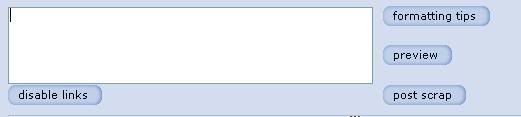
4. You Will Notice something like this there.
5. Note the link “disable links”. When your enter your scrap and is finished with all the formating, just click on it and you are done! Orkut won’t ask for the word verification as far as the link sending is concerned.
6. In addition to Scrapbook we have included the “disable links” button in the Community Message Reply Box and the normal scrap reply box, that you encounter the most, too!. Isn't this really very helpful?
Click Here For more details about the Script.
Note: Works only on firefox with Greasemonkey Script

Recently Google introduced a new Google Talk Gadget which could be embedded onto any blog or webpage. Making use of this gadget, ErickXavier has coded a Greasemonkey script which adds a nifty Google Talk gadget within Orkut Sidebar, which allows you to stay intouch with your buddies without installing Google Talk.
Installation Instructions:
Just like any other Greasemonkey script, you need Firefox and Greasemonkey extension before attempting to install this script. Click here to install the script

orkutFeed is a service that disponibiliza Feeds RSS for the communities of orkut. It is not necessary to make I register in cadastre! You only need to inform link of community, and to catch link of the Feed.
In order to add your favorite community, simply find the link of the forum in Orkut...
...and copy and paste the link into the space provided below
Next, press ok 
...which will bring you to a new screen. If your site feed is already listed via button form (which is to the right of the "big orange square" or the universal symbol for site feeds) then simply click on your preferred button
This is probably a good thing (as it prevents other users from stealing one's content) although the anonymous coder may expand it later on to include full posts.
The great thing about this site is that both Firefox, IE and Opera users can enjoy the full benefits without having to switch over to a different browser.
This Service is provided by Orkut feed, this page is not available in English so use Google Language tool to translate it
Related: Inside Orkut